Operation Manual
You must read the Usage and Safety Precautions before use.
©2026 ZOOM CORPORATION

Copying or reprinting this manual in part or in whole without permission is prohibited.
All trademarks and registered trademarks in this document are for identification purposes only and are not intended to infringe on the copyrights of their respective owners.
Proper display is not possible on grayscale devices.
This manual might be needed in the future, so be sure to keep it somewhere that is easy to access.
The contents of this document and the specifications of the product could be changed without notice.
Microsoft and Windows are trademarks of the Microsoft group of companies.
iPadOS, Lightning and Mac are trademarks of Apple Inc.
App Store is a service mark of Apple Inc.
IOS is a registered trademark or trademark of Cisco Systems, Inc. and affiliated companies in the USA and other countries and is used under license.
Android™ and Google Play are trademarks or registered trademarks of Google LLC.
USB Type-C is a trademark of the USB Implementers Forum.
Wi-Fi® is a registered trademark of Wi-Fi Alliance.
The Bluetooth® word mark and logo are registered trademarks of Bluetooth SIG, Inc., and these marks are used under license by ZOOM CORPORATION.
Product names, registered trademarks and company names in this document are the property of their respective companies.
All trademarks and registered trademarks in this document are for identification purposes only and are not intended to infringe on the copyrights of their respective owners.
The illustrations and display screens in this document could differ from the actual product.
This product includes open source software under licenses such as the GNU General Public License (GPL), the GNU Lesser General Public License (LGPL), and the Mozilla Public License (MPL). For copyright notices, license terms, and source codes, check the ZOOM website (zoomcorp.com/neurig).
Rigs store effects and amps used, effect on/off states, and parameter setting values, allowing easy recall. Effects are saved and recalled in units of Rigs. A single Rig can include up to 14 effects. Up to 200 Rigs can be saved.
The available effects include various guitar effects and amp/cabinet simulation models. You can select which of these effects to add to Rigs.
Impulse response (IR) and Neural Amp Modeler (NAM) files can also be registered as effects.
The combination of the on/off states and parameter settings of the effects in a Rig is called a “Program,” and up to four Programs can be stored in a Rig.
Programs can be switched easily by pressing a footswitch.
This function automatically saves changes to Rig and effect settings.
This function will automatically turn the power off 10 hours after the last operation.
A phrase up to 45 seconds can be recorded and played back repeatedly.
In NEURIG, a virtual pedalboard laying effects, amps, cabinets, programmable switchers, and others for your performance is called a “Rig.”
You can store 200 Rigs. Use the footswitches to select a Rig. (→ Switching Rigs while playing)
■ Typical pedalboard
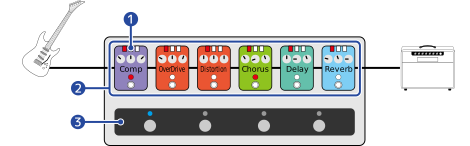
■ NEURIG
A programmable switcher allows you to control the on/off state and parameter settings of multiple effects and amps with a single footswitch.
NEURIG has two Rig modes that can be used for different purposes. (→ Switching Rig modes)
This mode operates as if a programmable switcher is integrated into the pedalboard.
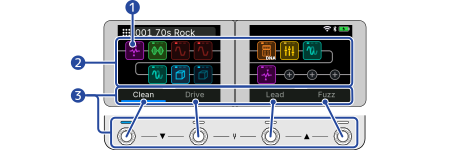
Up to four on/off states of effects or Parameter Slot selections can be stored in a Rig.
Programs can be recalled with a footswitch.
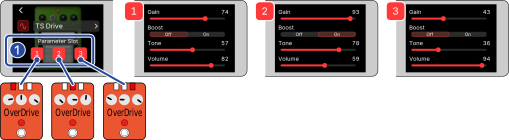
Up to three parameter settings can be registered for one effect. These three are called “Parameter Slot (1 to 3).”
The Parameter Slot is available for each effect. Touching an effect icon and selecting a Parameter Slot allow you to adjust parameters.
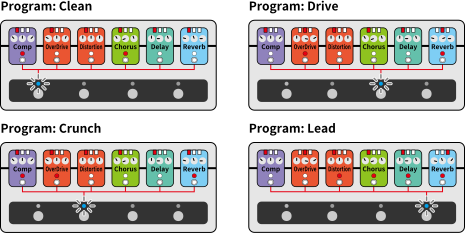
It is convenient to assign Programs to the footswitches in sequence according to the song you play.
For example, set a clean sound (Clean) for the introduction, a lightly distorted sound (Crunch) for the verse, a deeply distorted sound (Drive) for the chorus, and a sound with delay and reverb (Lead) for the guitar solo.
The following example shows the on/off state of each effect and which Parameter Slot to use.
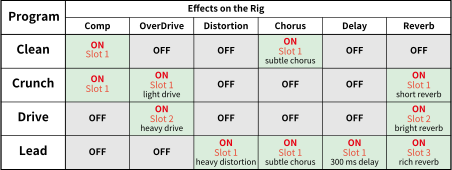
When two or more Programs are selected for the same Parameter Slot, adjusting parameters will also change the sound of all Programs selected for the same slot.
If you want to change the sound of each Program, select another slot and then adjust parameters.
Each footswitch controls the on/off state of an effect or amp in the Rig.
In addition to the stereo OUTPUT jacks, NEURIG also features the SUB IN/OUT and SEND/RETURN jacks, allowing for a variety of applications depending on the situation.
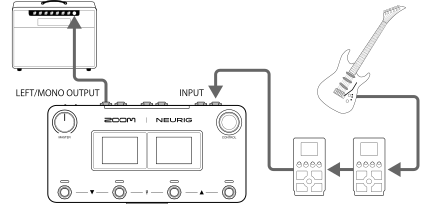
If you want to use familiar preamps or distortion pedals, you can connect them before NEURIG and use NEURIG as a dedicated spatial or modulation effect board.
If you want to use overdrive, fuzz, or distortion pedals along with NEURIG, you can connect them to SEND/RETURN jacks to use your favorite pedals as virtual effects in NEURIG.
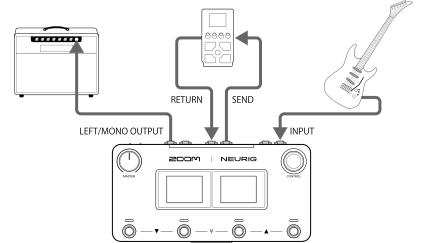
For the Send/Return settings, see “Using Send/Return.”
If you want to play an expansive sound on stage, connect the NEURIG stereo OUTPUT to the PA mixer and play the guitar sound in stereo from the PA speakers.
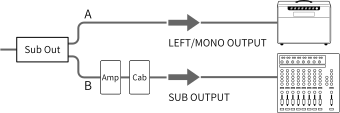
At the same time, you can connect the NEURIG’s SUB OUT to a guitar amp on the stage to monitor the guitar sound.
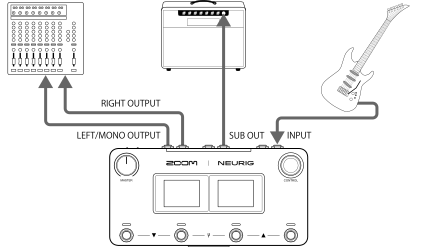
For the SUB OUT settings, see “Using SUB IN/OUT jacks.”
The four-cable method allows you to use the preamp section of an actual guitar amp on NEURIG. By placing the preamp of a guitar amp inside NEURIG, you can place distortion effects before the preamp, and spatial or modulation effects after the preamp.
The output sound of NEURIG can be played through the power amp and speakers of the guitar amp.
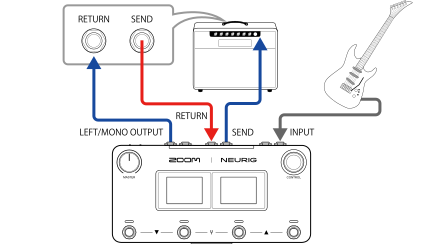
For the four-cable method settings, see “Using NEURIG with four-cable method.”
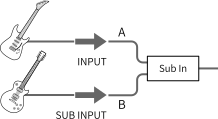
If you are using two guitars with different characteristics, such as a six-string guitar, a seven-string guitar, or a 12-string guitar, you can connect the second guitar to NEURIG using the SUB IN jack. This allows you to perform with a single NEURIG unit while switching between guitars.
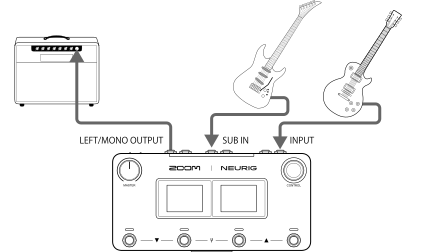
For the SUB IN settings, see “Using SUB IN/OUT jacks.”
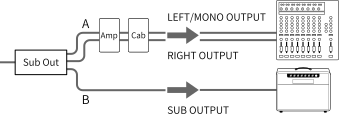
You can also connect a second amp to the SUB OUT jack and play while switching amps, or you can play two amps simultaneously.
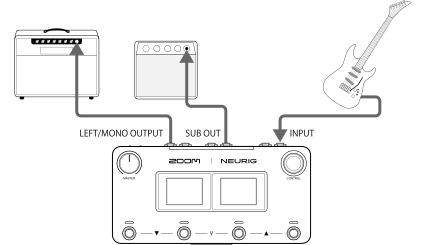
For the SUB OUT settings, see “Using SUB IN/OUT jacks.”
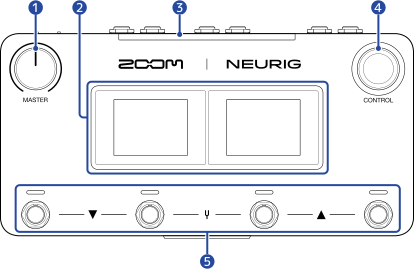
Settings can be configured by touch operation.
By assigning a function, you can also use them for setting tap tempo, bypassing, and displaying the Looper Screen. (→ Setting functions controlled by footswitches)
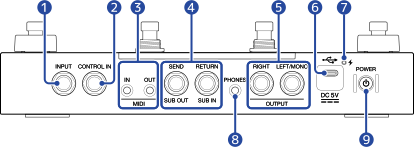
OUT jack: Connect to the MIDI IN connector of a MIDI device.
IN jack: Connect to the MIDI OUT connector of a MIDI device.
SEND/SUB OUT jack
For effects loop: Connect to the INPUT jack of an external effects unit.
For sub-outputs: Connect to the INPUT jack, or the like, of an external output device.
For four-cable method: Connect to the guitar input of the amp.
RETURN/SUB IN jack
For effects loop: Connect to the OUTPUT jack of an external effects unit.
For sub-inputs: Connect to the OUTPUT jack, or the like, of a musical instrument.
For four-cable method: Connect to the SEND jack of the amp.
RIGHT jack: For stereo output, connect to the input jack (right channel) of the connected device.
LEFT/MONO jack: Connect to a guitar amp. For stereo output, connect to the input jack (left channel) of the connected device.
This supports operation on USB bus power.
Connected to a computer, smartphone, or tablet, NEURIG can be used as an audio interface.
The dual-touch screen is used for the NEURIG operation and settings.
The screens become active when the power is turned on.
The selected Rig is displayed, allowing you to see the status of the Rig, effects, and so on.
When the HOME Screen is displayed, you can select Rigs or effects by pressing the footswitches.
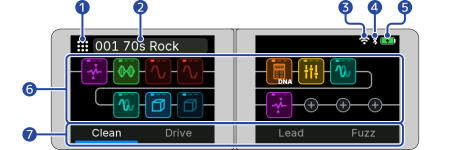

During charging,  shows.
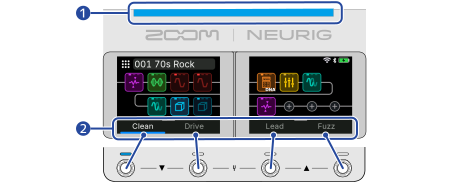
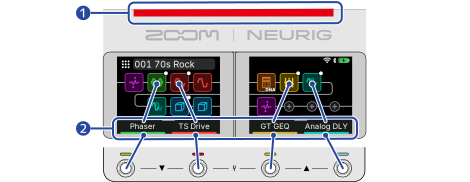
When Program mode is selected: The names of the Programs registered to the Rig appear. (→ Selecting a Program (Program mode))
The selected Program name will light brightly.
When Stomp mode is selected: The names of the effects that can be turned on/off with the respective footswitches appear. (→ Turning effects on/off with a footswitch (Stomp mode))
The active effect names will light brightly.
When Program mode is selected: The Program names appear large on the screen, making it easier to identify the Programs while playing. (→ Selecting a Program (Program mode))
When Stomp mode is selected: The names of effects that can be turned on/off with the footswitches appear large on the screen, making it easier to identify the effect names while playing. (→ Turning effects on/off with a footswitch (Stomp mode))
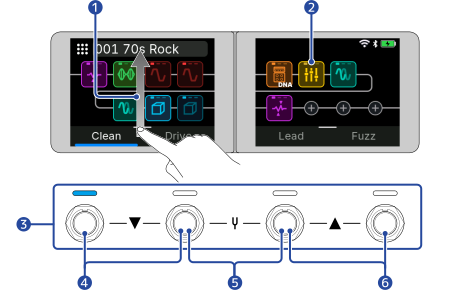
To return to the HOME Screen, swipe down on the Stage View Screen.
Touch: The Effect Edit Screen opens, allowing you to adjust effect parameters. (→ Adjusting effect parameters)
Double-touch: Turns effects on/off. (→ Turning effects on/off on the Effect Edit Screen)
Touch and hold: The Move/Delete Screen opens, allowing you to move and delete effects. (→ Deleting effects, Changing the order of effects)
Touch the plus icon: The Effect Selection Screen opens, allowing you to select the effects you want to register. (→ Adding effects)
The effect icon indicates the effect settings.
The effect icons light brightly when the effects are on.
Selection status of the Parameter Slot for an effect can be checked at the top of the effect icon. (→ Using different settings for each Program (Parameter Slot))

Effects with a white dot in the upper right of the effect icon can be turned on/off with a footswitch. (→ Turning effects on/off with a footswitch (Stomp mode), Turning a specific effect on/off with a footswitch (On/Off Control))

When Program mode is selected: Press footswitch 1, 2, 3, or 4 to select the corresponding Program. (→ Selecting a Program (Program mode))
The selected footswitch indicator lights.
You can also select a Program by touching its name on the Home Screen.
When Stomp mode is selected: Press footswitch 1, 2, 3, or 4 to turn the corresponding effects on/off. (→ Turning effects on/off with a footswitch (Stomp mode))
The footswitch indicators light when effects are on.
You can also turn effects on/off by touching their names on the Home Screen.
This screen is displayed by touching an effect icon on the HOME Screen.
You can turn the selected effects on/off and adjust parameters.
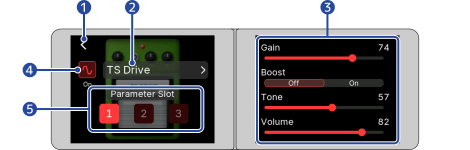
These icons are displayed only when Program mode is selected. (→ Selecting a Program (Program mode))
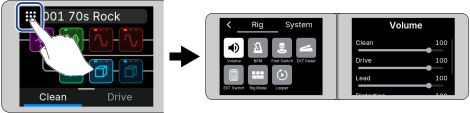
This screen is displayed by touching the menu icon on the HOME Screen.
You can configure various settings for the Rig, such as adjusting the volume and tempo and configuring the footswitches and access the Looper Screen for operations and settings.
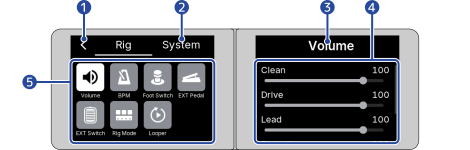
See the reference links for details about each setting.
 | This adjusts the volume of the Rig. (→ Adjusting the Rig volume) |  | This adjusts the Rig tempo. (→ Adjusting the tempo) |
 | This assigns functions to the NEURIG footswitches. (→ Setting functions controlled by footswitches) |  | This sets up an external expression pedal. (→Using an external expression pedal) |
 | This sets up an external footswitch. (→ Using an external footswitch) |  | This selects Rig modes. (→ Switching Rig modes) |
 | This opens the Looper Screen. (→ Using the looper) |
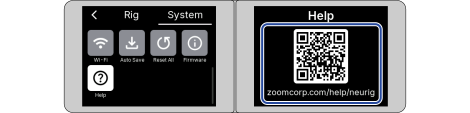
This screen is displayed by touching the System tab on the Rig Menu Screen.
From this display you can configure various settings related to the system.
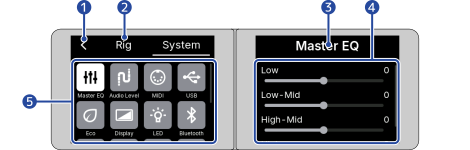
See the reference links for details about each setting.
 | This adjusts the EQ of output from NEURIG. (→ Adjusting the Master EQ) |  | This adjusts the audio level of the NEURIG’s OUTPUT jacks and SEND/RETURN jacks to match the level of the connected instrument or device. (→ Setting the reference output level for inputs and outputs) |
 | This configures the MIDI settings common to all Rigs. (→ Configuring the MIDI settings) |  | This configures settings when connected to a USB device. (→ Using audio interface functions) |
 | This turns ECO mode on/off. (→ Setting ECO mode) |  | This adjusts the brightness of the dual-touch screen. (→ Setting the brightness of the dual-touch screen) |
 | This adjusts the brightness of the status indicator/footswitch indicators. (→ Setting the brightness of indicators) |  | This configures the Bluetooth connection settings. (→ Establishing a Bluetooth connection with a smartphone/tablet) |
 | This configures the Wi-Fi connections settings. (→ Connecting to a network with Wi-Fi) |  | This turns the Auto Save function on/off. (→ Setting the Auto Save function) |
 | This restores factory default settings. (→ Restoring factory default settings) |  | This allows you to check the firmware versions. (→ Checking the firmware versions) |
 | This allows you to check the latest information regarding NEURIG. (→ Checking the latest information regarding NEURIG) |
Displayed on the right side of the dual-touch screen when entering text such as changing the Rig name.
Touch the keys to input characters
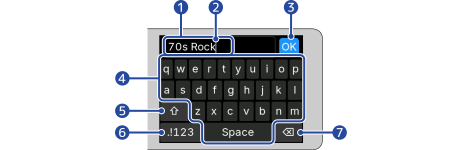
The character input position can be changed by touching.
Touching the back icon on the left screen cancels editing and returns to the previous screen.
Touch: Lightly touch the icon or item once with your fingertip.

Double-touch: Touch twice in succession.

Touch and hold: Keep touching for a certain period of time.

Drag: Move your finger up/down/left/right while touching.
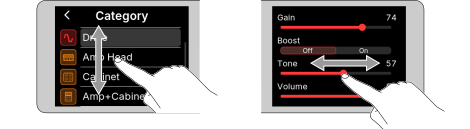
Swipe: Place your finger on the dual-touch screen and slide it up or down to switch screens.
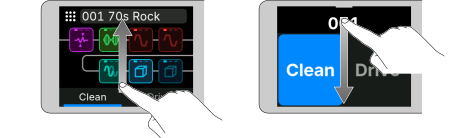
If the back icon is displayed in the upper left corner, you can return to the previous screen by touching it.

When there are too many items in the list to fit in the dual-touch screen, a scroll bar appears on the right.
You can scroll the display by dragging the dual-touch screen up or down.

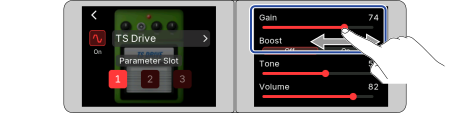
On screens where parameters can be adjusted, drag the parameter left or right to adjust it.
You can check the adjustment value numerically.
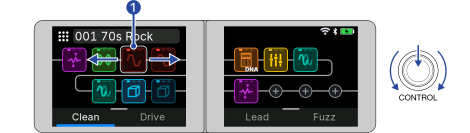
The dual-touch screen can also be operated using the CONTROL knob.
Rotating the CONTROL knob displays a cursor (white frame), allowing you to select icons in sequence.
Pressing the CONTROL knob confirms the selection, the same operation as touching.
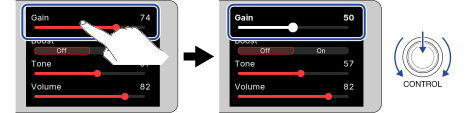
You can also touch the parameter you want to adjust, then rotate the CONTROL knob to adjust the parameter.
Rotating the CONTROL knob displays a cursor (white frame) on the left side of the Effect Edit Screen, allowing you to select icons and effect names in sequence.
Pressing the CONTROL knob confirms the selection, the same operation as touching.
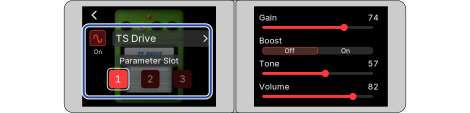
Parameters are displayed on the right side of the Effect Edit Screen. Follow the steps below to adjust the parameters.
Rotate the CONTROL knob to select the parameter and press the CONTROL knob to confirm
The cursor disappears, and the selected parameter is displayed in white.
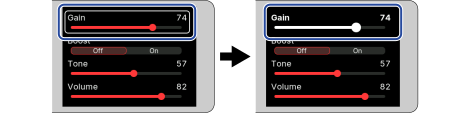
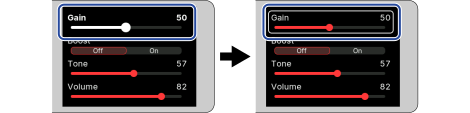
Rotate the CONTROL knob to adjust the parameter and press the CONTROL knob to confirm
The adjustment is applied, and the screen returns to the previous screen. Repeat steps 1 and 2 to adjust the other parameters, as needed.
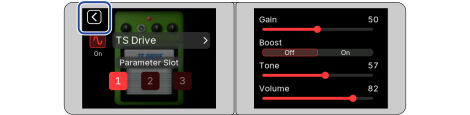
After adjusting, rotate the CONTROL knob to select the back icon and press the CONTROL knob to return to the Home Screen.
On the Rig Menu Screen and System Menu Screen, menu item icons are displayed on the left screen, and setting items are displayed on the right screen.
Rotate the CONTROL knob to select the menu item icon you want to configure on the left and press the CONTROL knob
The setting items for the selected menu item icon are displayed on the right screen, and the cursor moves to the right screen.
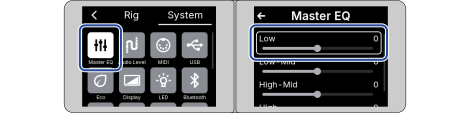
Rotate the CONTROL knob to select the parameter and press the CONTROL knob
The cursor disappears, and the selected parameter is highlighted.
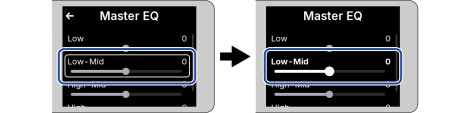
Rotate the CONTROL knob to adjust the parameter and press the CONTROL knob
The adjustment is applied, and the screen returns to the previous screen. Repeat steps 2 and 3 to adjust the other parameters, as needed.
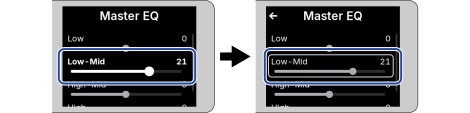
After adjusting, rotate the CONTROL knob to select the arrow icon and press the CONTROL knob
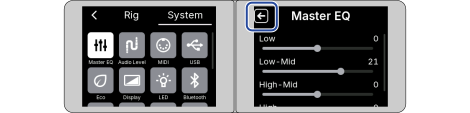
The cursor returns to the left screen.
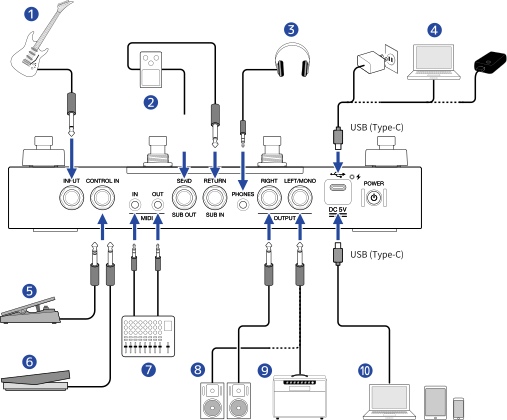
Commercially available USB AC adapter (10 W (5 V, 2 A) or more)
A computer that is powered on
Mobile battery
This allows you to use an external MIDI device in coordination with NEURIG.
NEURIG can be used as an audio interface and to exchange MIDI data.
NEURIG is equipped with SEND/RETURN jacks, supporting the four-cable method. For details, see “Using NEURIG with four-cable method.”
NEURIG has a built-in lithium-ion battery, allowing you to use NEURIG without being connected to a power source.
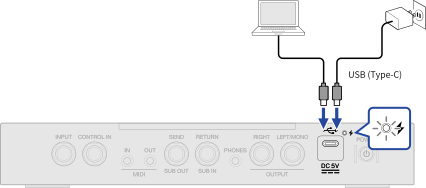
The charging indicator lights during charging.
You can also connect and charge a mobile battery (10 W (5 V, 2 A) or more).

This turns the NEURIG power on, and the status indicator lights.
The HOME Screen is displayed on the dual-touch screen.
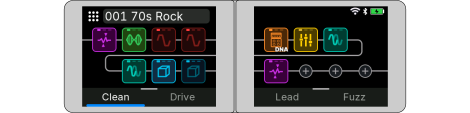
The status indicator goes off, and the power turns off.
If NEURIG does not accept any operation, you can forcibly turn it off by following the procedure below.
This adjusts the output volume of NEURIG.

The adjustment value is displayed on the screen.
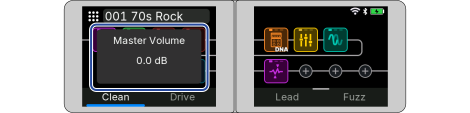
The setting range is MUTE to +6 dB.
Setting becomes 0 dB with the knob in the center position.
This adjusts the tonal character of sound output from NEURIG.
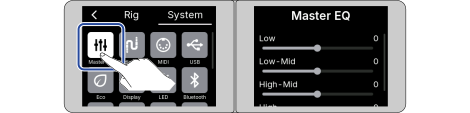
The adjustment value is displayed numerically.
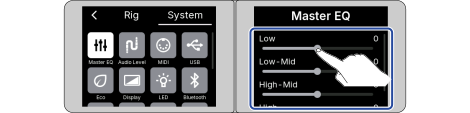
Low: Low range
Low-Mid: Medium-low range
High-Mid: Medium-high range
High: High range
NEURIG comes with 75 preset Rigs and can store up to 200 Rigs.
On the HOME Screen, you can switch between Rigs while you are playing. You can also select the Program or effect assigned to the footswitch in the Rig to change the tone. (→What is a Rig? (Virtual pedalboard))
You can view the details of the preset Rigs in the “Rig List” (zoomcorp.com/help/neurig).
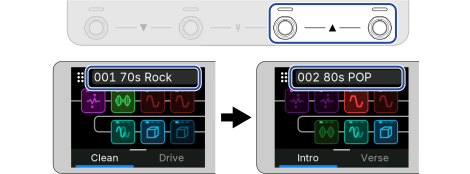
Pressing footswitches 1 and 2 simultaneously selects the previous Rig.
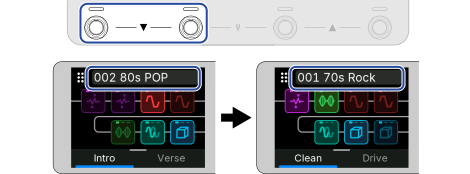
Pressing footswitches 3 and 4 simultaneously selects the next Rig.
Touch the Rig name on the HOME Screen
This opens the Rig List Screen.
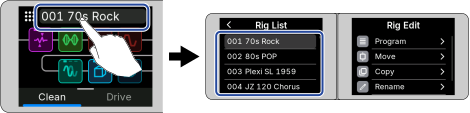
Touch the Rig you want to select on the left screen
On the Rig List Screen, you can manage Rigs, including reordering, copying, renaming, and deleting them, as well as manage Programs. (→ Managing Rigs, Managing a Program)
When Program mode is selected (the status indicator lights blue), you can select a Program by pressing the footswitch.

Depending on the Rig, different Programs are available.
In a preset Rig in Program mode, four types of Programs, such as clean sound, overdrive sound, lead sound, and distortion sound, are available.
When the status indicator lights red, a Rig for Stomp mode is selected. Select a Rig for Program mode. (→ Selecting a Rig)
The settings for each effect are stored independently in the Stomp and Program modes.
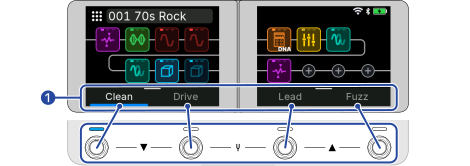
The selected footswitch indicator lights blue. (The Program name will light brightly.)
You can also select a Program by touching its name.
Swipe up on the HOME Screen to display the Stage View Screen.
The Program names appear large on the screen, making it easier to identify the Programs while playing.
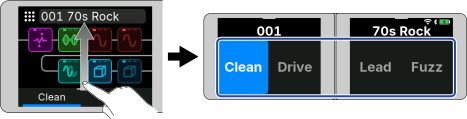
To return to the HOME Screen, swipe down on the screen.
The Program names vary from Rig to Rig. You can also change the names. (→ Renaming a Program)
You can also edit Programs such as effects on/off settings and parameter settings. (→ Editing effects)
You can configure Programs, such as move and copy, within a Rig. (→Managing a Program)
When you press the selected footswitch again, the footswitch indicator will light white. You can select a state where the effect is simply turned on or off while keeping the settings of the effects. (→ Turning a specific effect on/off with a footswitch (On/Off Control))
When Stomp mode is selected (the status indicator lights red), you can assign one effect to each footswitch. Pressing the footswitch toggles the effect on/off.

Some preset Rigs are for Stomp mode.
When the status indicator lights blue, a Rig for Program mode is selected. Select a Rig for Stomp mode. (→ Selecting a Rig)
The settings for each effect are stored independently in the Stomp and Program modes.
The effect names shown at the bottom of the dual-touch screen are the effects that can be turned on/off by pressing the footswitches.
Pressing the footswitch toggles the corresponding effects on/off.
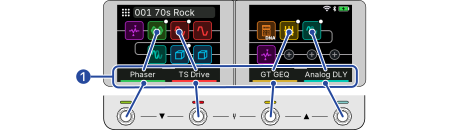
The footswitch indicators for the active effects will light in the color of the effect icon. (The effect names will light brightly.)
You can also turn effects on/off by touching their names.
Effects not assigned to a footswitch can be turned on/off from the Effect Edit Screen or the HOME Screen. (→ Turning effects on/off on the Effect Edit Screen)
When the desired effect is not displayed or “Empty” is displayed, you can assign the effect to the footswitch. (→ Changing footswitch assignments (Stomp mode))
Swipe up on the HOME Screen to display the Stage View Screen.
The Effect names appear large on the screen, making it easier to identify the effects that can be turned on/off while playing.
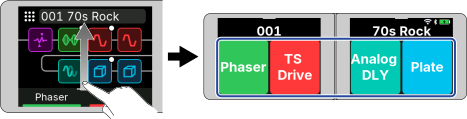
To return to the Home Screen, swipe down on the screen.
Operations such as turning effects on/off and adjusting parameters are performed on the Effect Edit Screen.
When the Auto Save function is on, changes to Rigs will be automatically saved. (This function is on by default.) (→Setting the Auto Save function)
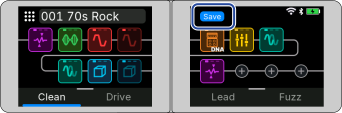
Rigs will not be saved automatically if the Auto Save function is off. When the Rig settings have been changed, the Save icon will appear at the top right of the screen, showing that they differ from the saved settings.
Touching the Save icon displays a screen that prompts you to save changes. When you touch “Execute,” the changed settings are saved.
The individual effects used in the Rig can be turned on/off.
When Program mode is selected: The effect on/off settings changed on the Effect Edit Screen are saved in the selected Program. (→ Editing effects)
When Stomp mode is selected: Switching effects on/off on the Effect Edit Screen is the same function as switching them on/off using the footswitches. (→ Turning effects on/off with a footswitch (Stomp mode))
The icon lights brightly when the effect is on.
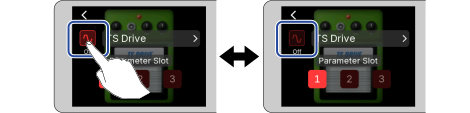
When an effect is turned off, the effect icon appears dimmed on the HOME Screen.
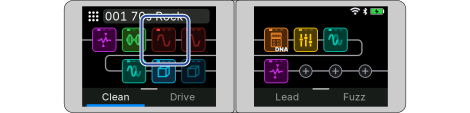
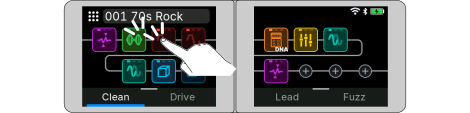
When the HOME Screen is displayed, you can also double-touch the effect icon to turn the effect on/off.
Some effects assign special functions to footswitches. (This includes effects that turn on only while the footswitch is being pressed, for example.) Special functions can be selected on the Effect Edit Screen. (→ Footswitch special functions)
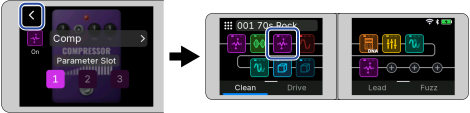
The effects used in the Rig can be changed.
The Effect Selection Screen is displayed.
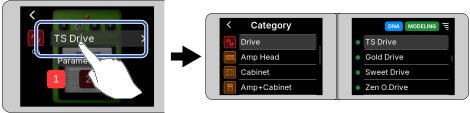
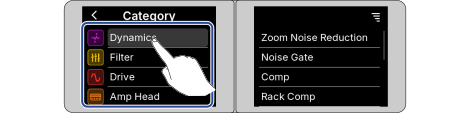
The selected category is highlighted.
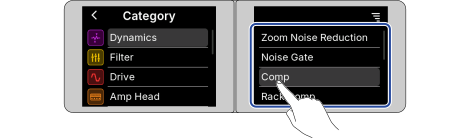
The selected effect is highlighted and the effect is enabled.
The Effect Edit Screen for the effect you selected is displayed. Adjust the parameters, as needed. (→ Adjusting effect parameters)
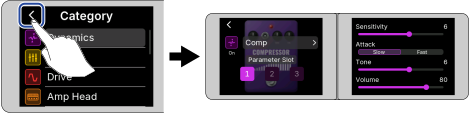
The HOME Screen is displayed, and the effects you changed are applied.
When selecting an effect in the Pedal category, connect an external expression pedal and configure settings. (→ Using an external expression pedal)
You can view the description of each effect in the “Effect List” (zoomcorp.com/help/neurig).
With NEURIG, you can freely combine 14 effects. However, items that exceed the processing power are grayed out and cannot be selected. When touched, “Process Overflow” is displayed, indicating the processing load of each effect being used in the Rig. In this case, edit or delete one of the effects so that the value does not exceed 100%.
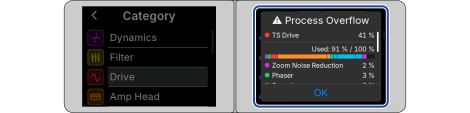
The DNA models available in “Drive,” “Amp Head,” and “Amp+Cabinet” have high sound quality but require a lot of processing power.
The individual effects used in the Rig can be adjusted.
When Program mode is selected: Up to three settings can be stored for a single effect and can be recalled with a single touch. Saved settings can also be recalled when switching Programs. (→ Editing effects)
When Stomp mode is selected: Only one parameter setting can be stored for each effect.
The selected Parameter Slot icon lights.
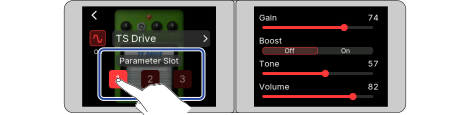
Settings saved in the Parameter Slot can be recalled with a single touch by simply selecting the Parameter Slot icon. For how to use the Parameter Slot, see “Using different settings for each Program (Parameter Slot).”
You can easily check which Program is using the currently selected Parameter Slot.
When you touch the selected Parameter Slot icon, the footswitch indicator for the Program using the Parameter Slot flashes twice.
You can check the setting values numerically.
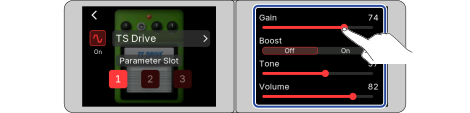
In some effects such as delay or amp, when there are too many parameters to fit within the screen, a scroll bar appears on the right.
You can scroll the screen to see hidden parameters.
Some effects assign special functions to footswitches, including turning the effect on only while the footswitch is being pressed. Parameters that select special functions appear on the dual-touch screen as light letters on a dark background.
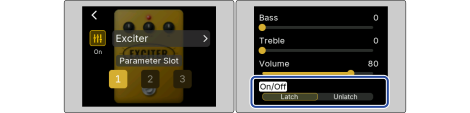
Up to 14 effects can be assigned in a Rig. You can set up to four different Programs by switching the on/off state and parameter settings of assigned effects.
You can edit the effects assigned to a Program by changing their on/off settings and parameter settings.
When Program mode is selected, effect edits are applied to the selected Program.
The icon lights brightly when the effect is on.
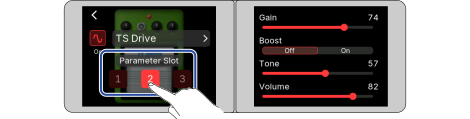
Store adjusted parameters in Parameter Slot 1 to 3 in advance (→ Using different settings for each Program (Parameter Slot)).
If you want to use the same effect with different settings for each Program, use the Parameter Slot.
Each effect has three Parameter Slot, and you can store up to three settings. (→ What is a Parameter Slot?)
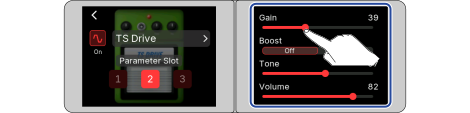
If the same Parameter Slot is selected by two or more Programs, the parameters set in one Program will be applied to the others. If you want to use different sounds, select a Parameter Slot not used by other Programs.
The lit Parameter Slot in the Effect Edit Screen is used by the selected Program (Program for the lit footswitch). When you switch Programs, the Parameter Slot display also changes.
■ State where Program A uses Parameter Slot 1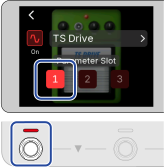 | ■ State where Program B uses Parameter Slot 2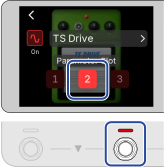 |
You can turn the selected effect on/off by pressing a footswitch without changing the effect parameter settings.
This is useful when you want to turn the delay effect on while playing.
This opens the On/Off Control Screen.
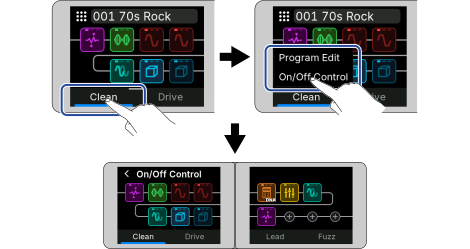
A white dot appears in the upper right of the touched effect icon.
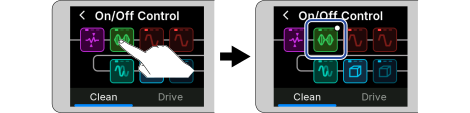
You can also select multiple effects.
The footswitch indicator will light white, and the effect shown by the white dot in the upper right will be switched on/off.
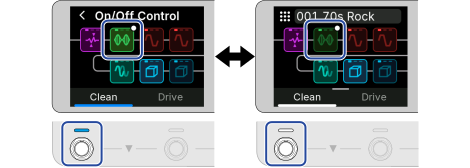
When you press the footswitch again, the footswitch indicator will light blue, and the effect on/off setting will return to the original setting.
You can adjust the volume of each Program separately.
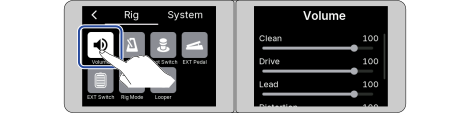
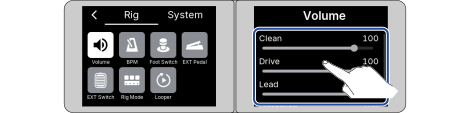
The setting value is displayed numerically.
You can copy Programs or change their names and order.
The Program List Screen is displayed.
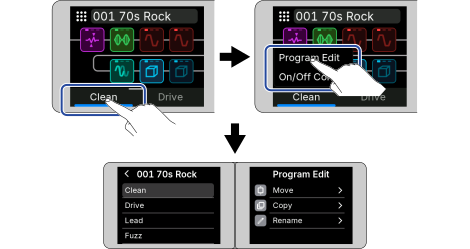
The Program list is displayed on the left screen, and the Program management items are displayed on the right screen.
Touch the back icon to return to the HOME Screen.
The Program List Screen can also be displayed by touching “Program” on the Rig List Screen. (→ Displaying the Rig List Screen)
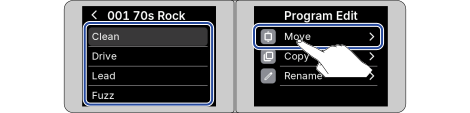
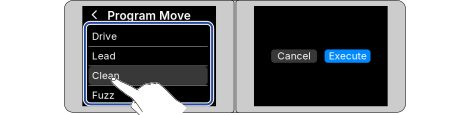
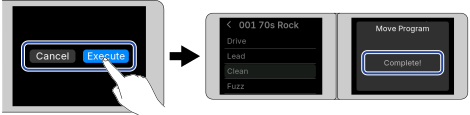
“Complete!” appears and returns to the Program List Screen.
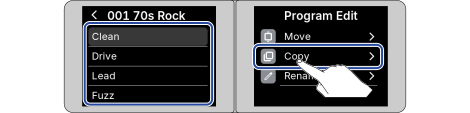
The copy destination is displayed on the right screen.
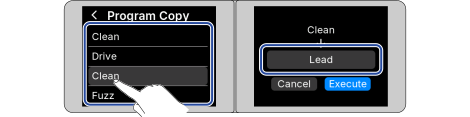
“Complete!” appears and returns to the Program List Screen.
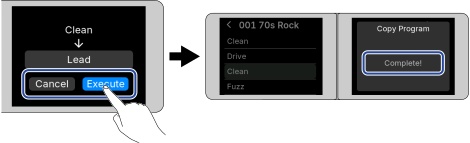
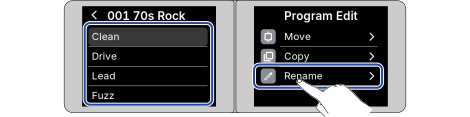
See “Character input screen” for how to input characters.
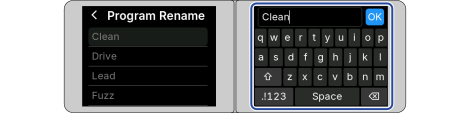
When Stomp mode is selected, if the effect you want to switch on/off is not displayed on the HOME Screen or if “Empty” is displayed, you can use the following procedure to assign the effect to a footswitch.
The Stomp Assign Screen is displayed.
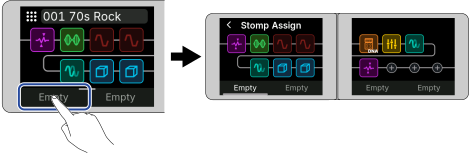
The selected effect is assigned to the footswitch, and the effect name is displayed.
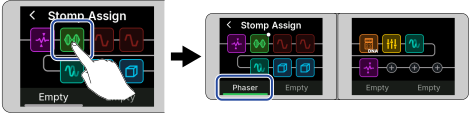
Returns to the Home Screen.
A white dot appears in the upper right of the effect icon that can be turned on/off by pressing a footswitch.
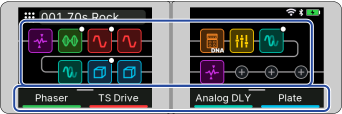
With NEURIG, you can freely combine 14 effects. (→ Notes about the number of effects in a Rig)
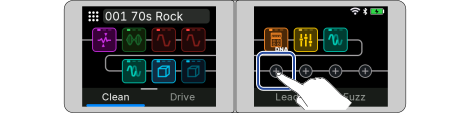
The Effect Selection Screen is displayed.
If 14 effects have already been registered, you cannot add effects. Delete unnecessary effects. (→ Deleting effects)
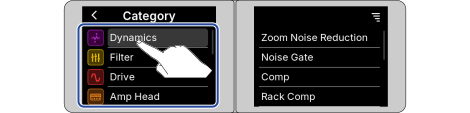
The selected category is highlighted.
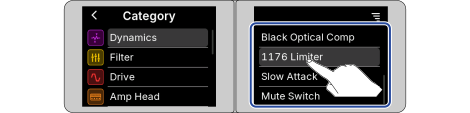
The selected effect is highlighted.
The HOME Screen is displayed, and the selected effect is registered.
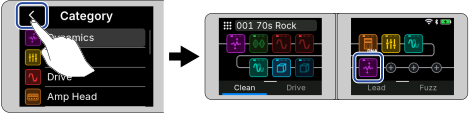
Adjust the parameters of the added effect, as needed. (→Adjusting effect parameters)
When Program mode is selected, the effect is added to the selected Program with the effect turned on. For other Programs, the effect is turned off.
When Stomp mode is selected, the effect is assigned to a footswitch and added only if there is room for the effect that can be turned on/off by footswitches.
You can view the description of each effect in the “Effect List” (zoomcorp.com/help/neurig).
Unnecessary effects can be deleted from the Rig.
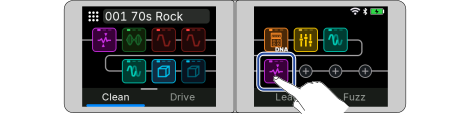
This opens the Move/Delete Screen.
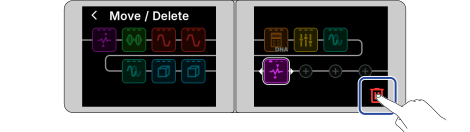
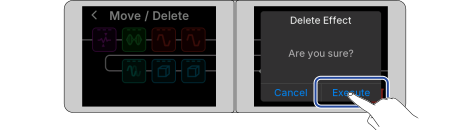
This deletes the selected effect and returns to the Home Screen.
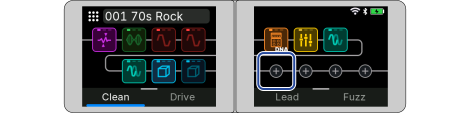
A plus icon is displayed where the effect is deleted.
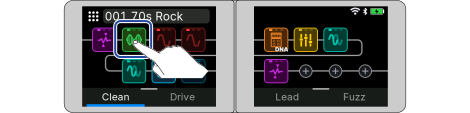
This opens the Move/Delete Screen.
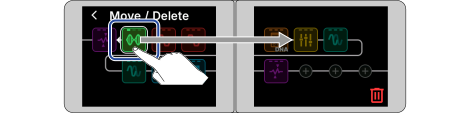
The effect moves to the position you dragged.
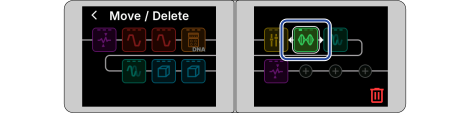
You can add the following tools for modifying routing in a Rig, like adding effects.
| Tool | Description |
|---|---|
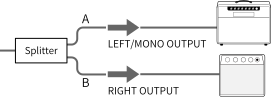
| Splitter
| You can split the route into two and adjust the output level for each. ■ Usage example
|
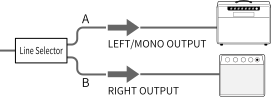
| Line Selector
| You can split the route into two and switch outputs by switching the Line Selector on/off. (The same role as an A/B box.) (→ Turning effects on/off on the Effect Edit Screen) ■ Usage example
|
| Mixer
| You can mix the routes split into two by the Splitter or Line Selector and adjust the input level for each. |
The position of the tools can be set freely, and the settings are stored for each Rig.
Because tools are treated as effects in a Rig, they also affect the maximum number of effects. (→ Notes about the number of effects in a Rig)
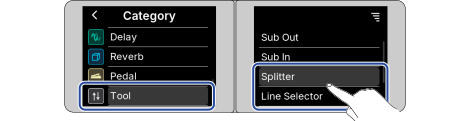
■ When “Splitter” is selected
The route is split into two, A and B, from the position of the Splitter icon. If you do not use a Mixer, the signal for route A (the route shown in the upper part of the screen) will be output from the LEFT/MONO jack, and the signal for route B (the route shown in the lower part of the screen) will be output from the RIGHT jack.
■ When “Line Selector” is selected
The route is split into two, A and B, from the position of the Line Selector icon. When Line Selector is turned on, A is selected, and when it is turned off, B is selected. If you do not use a Mixer, the signal for route A (the route shown in the upper part of the screen) will be output from the LEFT/MONO jack, and the signal for route B (the route shown in the lower part of the screen) will be output from the RIGHT jack.
■ When “Mixer” is selected
Two routes are mixed at the position of the Mixer icon. The Mixer can only be selected downstream of a Splitter or Line Selector.
■ When “Splitter” is selected

■ When “Line Selector” is selected

■ When “Mixer” is selected

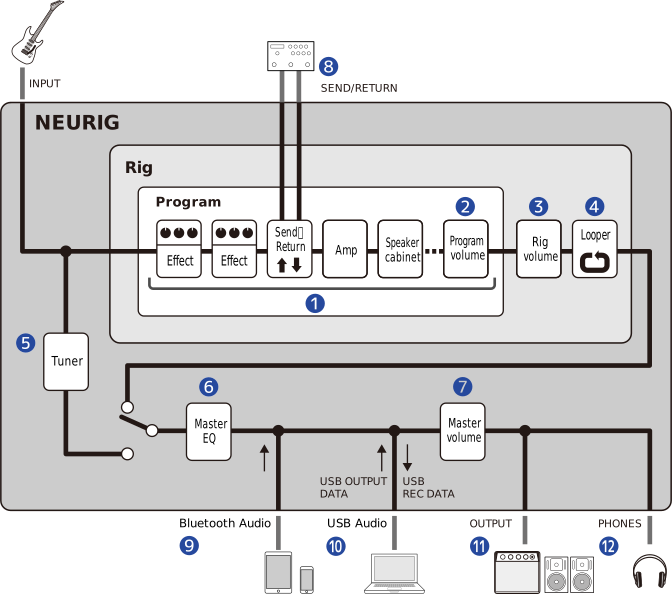
Send/Return lets you send a signal from anywhere in the Rig to an external effects unit and return the processed signal to the same position.
Send/Return is also a tool you can place in a Rig, like effects.
An external effects unit must be connected to the SEND/RETURN jacks of NEURIG.
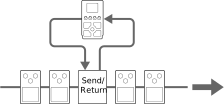
The position of Send/Return can be set freely, and the settings are stored for each Rig.
Because Send/Return is treated as an effect in a Rig, it also affects the maximum number of effects. (→ Notes about the number of effects in a Rig)
SEND/RETURN jacks are also used for four-cable connections. (→Using NEURIG with four-cable method)
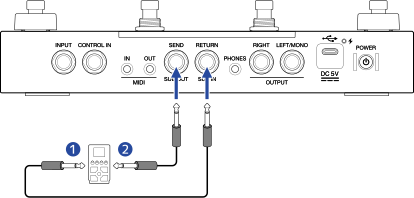
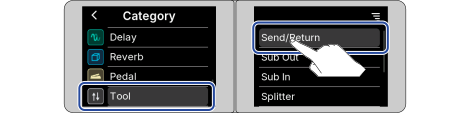
The signal is output to the SEND jack at the position of the added “Send/Return” icon, and the signal input from the RETURN jack is returned to this position.

The four-cable method allows you to use the preamp section of an actual guitar amp on NEURIG. You can place distortion effects before the preamp, and modulation, delay, and reverb effects after the preamp.
The output of NEURIG can be played through the power amp and speakers of the guitar amp.
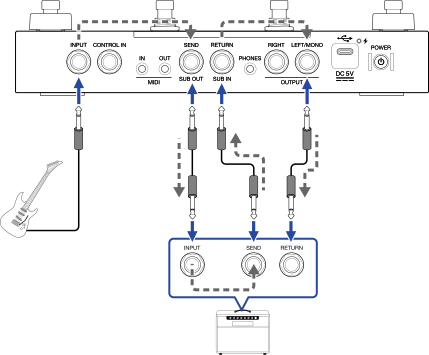
Dashed arrows indicate the path of the signal.
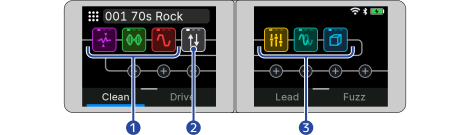
As a general example, after the distortion type and booster type effects are passed through the guitar amp’s preamp, modulation, delay, and reverb effects are applied and then output to the guitar amp’s power amp.
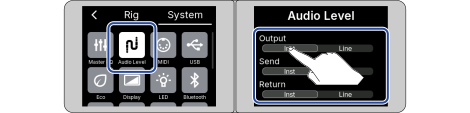
Configure the inputs and outputs according to the jack specifications of the connected guitar amp.
If you are connecting a jack of an instrument such as a guitar, select “Inst.” If you are connecting a jack of a line-level device, select “Line.” (Check the jack specifications in the operation manual of your guitar amp.)
| Setting item | Description |
|---|---|
| Output (Setting for NEURIG’s OUTPUT jack) | Make sure to match the specifications of your guitar amp’s RETURN jack. (Normally, select “Line.”) |
| Send (Setting for NEURIG’s SEND jack) | Make sure to match the specifications of your guitar amp’s INPUT jack. (Normally, select “Inst.”) |
| Return (Setting for NEURIG’s RETURN jack) | Make sure to match the specifications of your guitar amp’s SEND jack. (Normally, select “Line.”) |
You can use the SUB IN/OUT jacks to output to a mixer or connect two guitars and switch between them while playing.
You can add the following tools as effects to use the SUB IN/OUT jacks in a Rig.
| Tool | Description |
|---|---|
| Sub Out
| It branches from the route to the OUTPUT jacks to output to the SUB OUT jack. You can adjust the level sent to the OUTPUT jacks and the level sent to the SUB OUT jack. ■ Usage example
|
| Sub In
| Use the SUB IN jack to input. You can adjust the level of the INPUT jack and the level of the SUB IN jack. ■ Usage example Connect two guitars and switch between them while playing
|
The position of the tools can be set freely, and the settings are stored for each Rig.
Because tools are treated as effects in a Rig, they also affect the maximum number of effects. (→ Notes about the number of effects in a Rig)
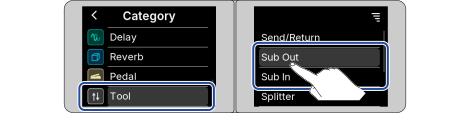
■ When “Sub Out” is selected
The route branches from the position of the Sub Out icon to send the signal to the SUB OUT jack.
■ When “Sub In” is selected
The signal from the SUB IN jack is input at the position of the Sub In icon.
■ When “Sub Out” is selected

■ When “Sub In” is selected

Rig-specific settings, such as adjusting the Rig volume and tempo, are configured on the Rig Menu Screen.
The volume is set for each Rig.
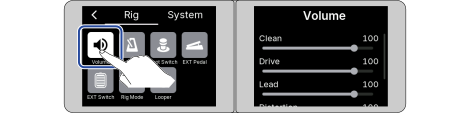
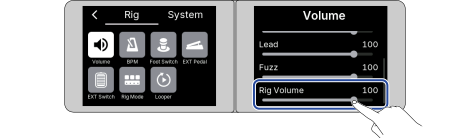
The setting value is displayed numerically.
You can also adjust the volume of each Program. (→ Adjusting the Program volume)
The tempo used by the looper, delay effects, and some modulation effects can be adjusted.
Tempo is set for each Rig.
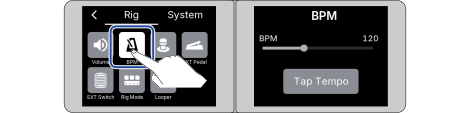
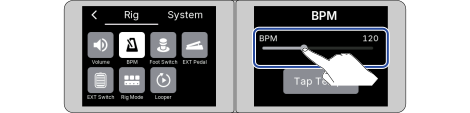
The setting value is displayed numerically.
The tempo can also be set by touching “Tap Tempo” repeatedly.
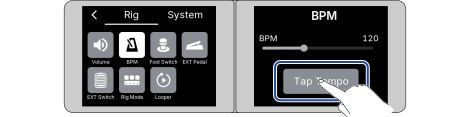
The indicator of the footswitch to which the tap tempo function is assigned will flash at the tempo interval.

The tempo is set at the interval at which you press the footswitch, and the tempo is displayed on the dual-touch screen.
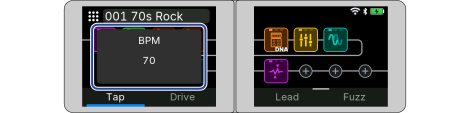
The footswitch indicator that indicates the tap tempo will continue to flash at the tempo interval even if you change the screen. To turn off tap tempo, select another Rig or disable the tap tempo function on the footswitch. (→ Setting functions controlled by footswitches)
The tap tempo function can also be assigned to an external footswitch. (→ Using an external footswitch)
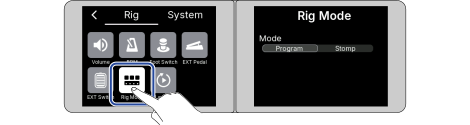
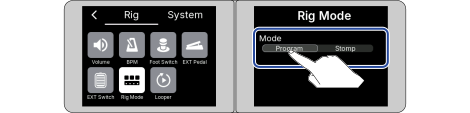
| Setting | Description |
|---|---|
| Program | Program mode is set. The footswitches can be used to select Programs. |
| Stomp | Stomp mode is set. The footswitches can be used to switch effects on/off. |
If the footswitch is set to “Tap Tempo,” “All Bypass,” or “Looper” in “Setting functions controlled by footswitches,” the set function takes priority.
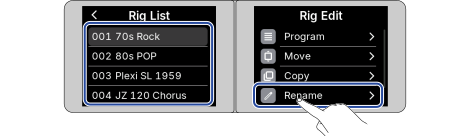
This opens the Rig List Screen.
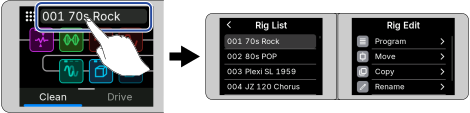
The list of Rigs is displayed on the left screen, and the management items are displayed on the right screen.
Touch the back icon to return to the HOME Screen.
If you touch “Program” on the Rig List Screen, you manage Programs. (→ Managing a Program)
“Program” is displayed only when the Rig mode is the Program mode. (→ Switching Rig modes)
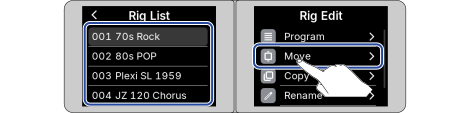
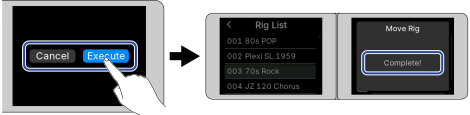
When you touch the destination, the Rig List with the moved Rig is displayed.
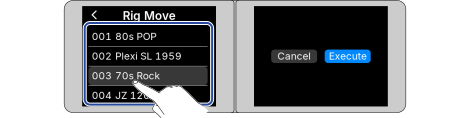
This shows “Complete!” and returns to the Rig List Screen.
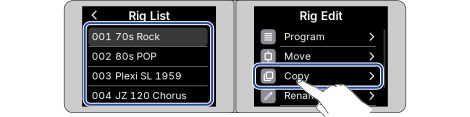
Rigs can be copied to other locations.
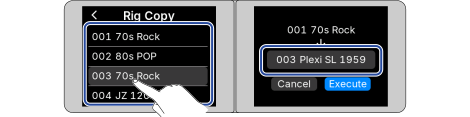
The copy destination is displayed on the right screen.
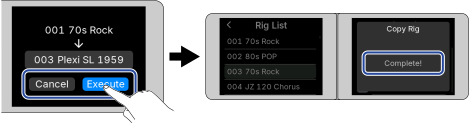
This shows “Complete!” and returns to the Rig List Screen.
See “Character input screen” for how to input characters.
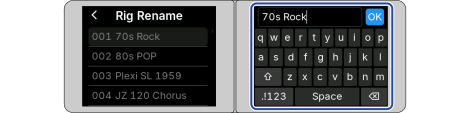
The characters and symbols that can be used are as follows.
! % & ' + , - . = _ (space) A–Z, a–z, 0–9
Unnecessary Rigs can be deleted.
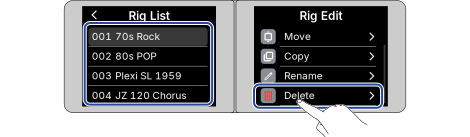
This deletes the selected Rig and returns to the Rig List Screen.
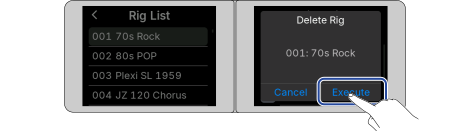
The deleted Rig becomes empty and displays “Empty.”
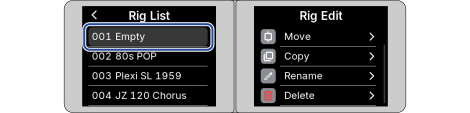
Touching “Cancel” cancels the deletion and returns to the Rig List Screen.
By assigning a function, the NEURIG’s footswitches can also be used to display the Tap Tempo, Bypass, and Looper Screens.
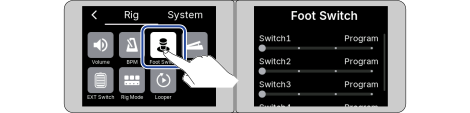
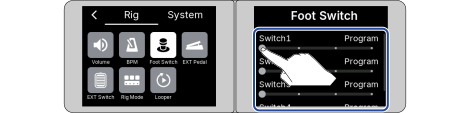
A function can be set for Switch1 to Switch4 respectively.
| Setting | Description |
|---|---|
| Program/ Stomp | The display and footswitch function change depending on the Rig mode. (→ Switching Rig modes)
|
| Tap Tempo | This adjusts the Rig tempo. (→ Setting tempo by pressing the footswitch repeatedly (tap tempo)) |
| All Bypass | Effects are bypassed and the guitar sound is output. |
| Looper | The Looper Screen is displayed, and the looper is enabled. (→ Using the looper) |
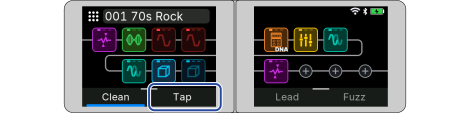
Returns to the HOME Screen.
The function assigned to the footswitch is displayed instead of the Program name/effect name on the HOME Screen.
When an external expression pedal (ZOOM FP02M) is connected, the effects in the Pedal category (wah pedal, pitch shifter, etc.) can be used to change how the effect is applied.
An external expression pedal can also be used as a volume pedal.
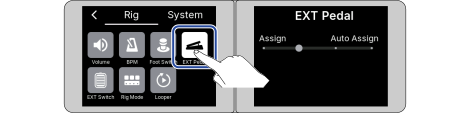
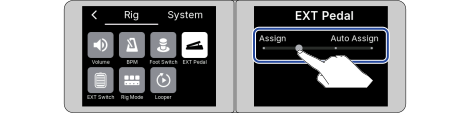
| Setting | Description |
|---|---|
| No Assign | No function is assigned to the external expression pedal. |
| Auto Assign | Automatically assigned to controlling the effects in the Pedal category. |
| Input Volume | Adjusts the input volume. |
| Output Volume | Adjusts the output volume. |
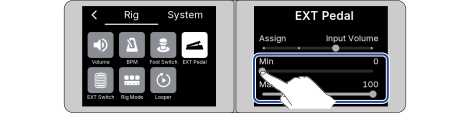
Min: Sets the parameter value when the pedal is not pressed (in the full-up position).
Max: Sets the parameter value when the pedal is pressed all the way down.
By connecting an external footswitch to NEURIG and assigning functions to it, you can use it for adjusting tap tempo, bypassing effects, and displaying the Tuner Screen.
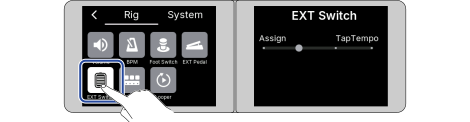
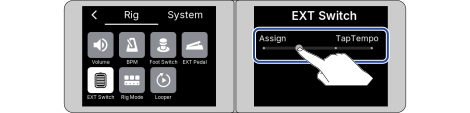
| Setting | Description |
|---|---|
| No Assign | No function is assigned to the external footswitch. |
| Tap Tempo | This adjusts the Rig tempo. (→ Setting tempo by pressing the footswitch repeatedly (tap tempo)) |
| All Bypass | Effects are bypassed and the guitar sound is output. |
| Tuner | The Tuner Screen is displayed, and the tuner is enabled. (→ Using the tuner) |
Enable the tuner to use NEURIG to tune a guitar.
This enables the tuner and opens the Tuner Screen on the dual-touch screen.
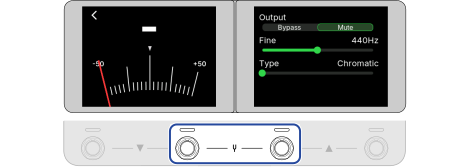
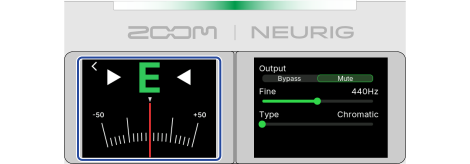
The nearest note name and pitch detuning will be shown.
When the pitch is in tune, the note name is displayed in green. (The center of the status indicator lights green.)
By assigning the function to recall the Tuner Screen to an external footswitch, you can display the Tuner Screen by using the pedal. (→ Using an external footswitch)
Pressing any footswitch while using the tuner closes the tuner and returns to the HOME Screen.
Touching the back icon on the Tuner Screen returns to the HOME Screen.
The standard pitch used by the tuner and the tuner type can be changed. Flat tuning is also possible.
Touch “Output” on the Tuner Screen, then touch an output method.
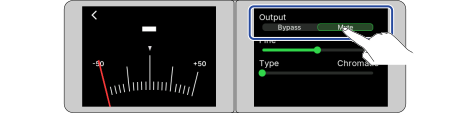
| Setting | Description |
|---|---|
| Bypass | Effects are bypassed and the guitar sound is output. |
| Mute | The guitar sound is not output. |
Adjusting the EQ and volume of a guitar amp, for example, is easier if the NEURIG effects are bypassed.
Touch “Fine” on the Tuner Screen and change the standard pitch by dragging.
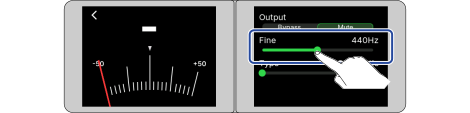
The setting range is 430 to 450 Hz for middle A.
Touch “Type” on the Tuner Screen and select the tuner type by rotating the CONTROL knob.
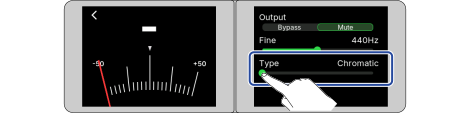
| Setting | Description |
|---|---|
| Chromatic | The pitch detuning is shown according to the nearest note (in semitones). |
| Other tuner types | The nearest string number is shown according to the selected type, and the amount of detuning from its pitch is shown. The following tuner types can be selected. |
| Display | Explanation | String number/note | ||||||
|---|---|---|---|---|---|---|---|---|
| 7 | 6 | 5 | 4 | 3 | 2 | 1 | ||
| Guitar | Standard guitar tuning with a 7th string | B | E | A | D | G | B | E |
| Open A | Open A tuning (open strings play A chord) | - | E | A | E | A | C# | E |
| Open D | Open D tuning (open strings play D chord) | - | D | A | D | F# | A | D |
| Open E | Open E tuning (open strings play E chord) | - | E | B | E | G# | B | E |
| Open G | Open G tuning (open strings play G chord) | - | D | G | D | G | B | D |
| DADGAD | Alternate tuning often used for tapping and other techniques | - | D | A | D | G | A | D |
All strings can be tuned flat from an ordinary tuning by 1 (♭× 1 ), 2 (♭× 2 ), or 3 (♭× 3 ) semitones.
Touch “Flat” on the Tuner Screen and set a flat tuning by rotating the CONTROL knob.
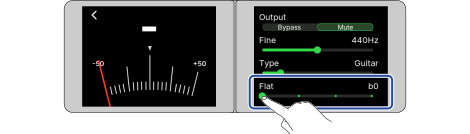
Flat tuning cannot be used when the tuner type is “Chromatic.” (→ Selecting the tuner type)
Playing can be record to create loop phrases that are up to 45 seconds long.
During looper recording and playback, it will continue recording or playing even if footswitch 4 is pressed to return to the HOME Screen or switch to other screens.
When the Rig Menu Screen is displayed, recording/playback stops.
Recorded phrases are cleared when you switch Rigs or turn off NEURIG.
The looper tempo is also used by the Rig.
The tempo can be set as explained in “Adjusting the tempo.”
Loop phrases recorded while the looper recording time is set to “♩ x 1 to 64” will be cleared when the tempo is changed. (→ Setting the recording time)
By enabling the looper, you can play the looper and configure the looper settings.
This enables the looper and opens the Looper Screen on the dual-touch screen.
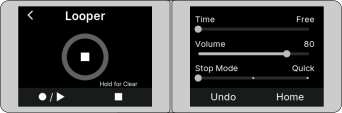
You can use the dual-touch screen or footswitch to record, play, stop, and configure the looper.
You can also assign the looper function to a footswitch and display the Looper Screen by pressing the footswitch on the HOME Screen. (→ Setting functions controlled by footswitches)
During looper recording/playback, it will continue recording/playing even if you return to the HOME Screen.
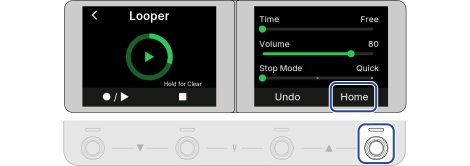
This opens the HOME Screen.
Touching the back icon stops recording/playback, and returns to the Rig Menu Screen.
Looper recording/playback and other operations are performed while the Looper Screen is displayed. (→ Enabling the looper)
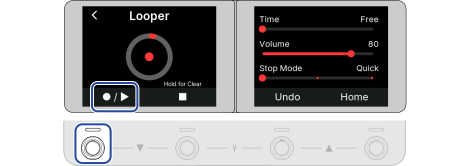
Recording will start, and the status indicator will light red.
Press footswitch 2 to cancel recording.
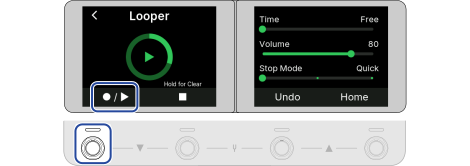
Recording will stop and loop playback will start.
During playback, the status indicator will light green.
If the maximum recording time is reached, recording will stop and loop playback will start.
If the recording time is set to “♩ x 1 to 64”, recording will stop and loop playback will start after the set recording time has elapsed. (→ Setting the recording time)
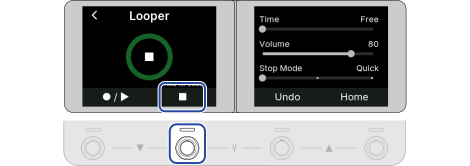
The playback will stop and the status indicator will go off.
Playback will start, and the status indicator will light green.
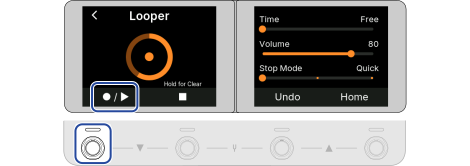
Overdubbing will start, and the status indicator will light orange.
When the end of the loop is reached, loop playback will continue from the beginning, and overdubbing can be repeated.
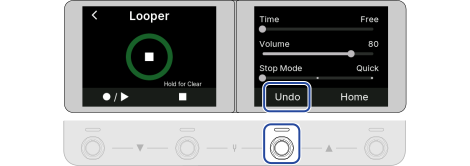
During overdubbing, press footswitch 1 to stop overdubbing, but continue loop playback.
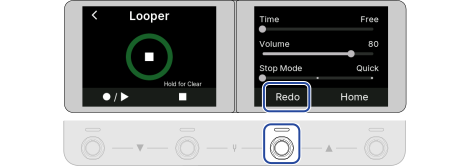
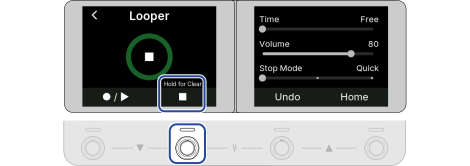
This clears the recorded loop.
You can configure the various looper settings (recording time, phrase playback stop, and phrase playback volume).
The recording time for the loop can be set.
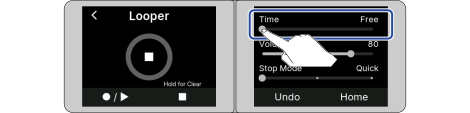
| Setting | Description |
|---|---|
| Free | Recording will continue until stopped by pressing footswitch 1 or the maximum recording time (45 seconds) is reached. |
| ♩ x 1 to 64 | When the set recording time is reached, recording will stop and loop playback will start. The actual recording time depends on the BPM (tempo) setting as follows. (→ Adjusting the tempo) The recording time (seconds) = 60 ÷ BPM × quarter notes. |
The phrase playback volume can be adjusted.
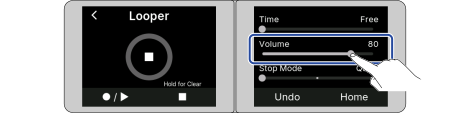
The phrase playback volume is adjusted here. For adjusting the overall NEURIG volume, see “Adjusting the Master Volume.”
This can be set from 0 to 100.
This sets how the looper behaves when loop playback is stopped.
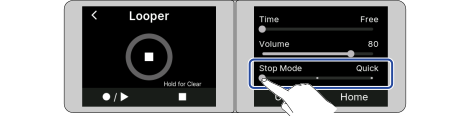
| Setting | Description |
|---|---|
| Quick | The loop will stop playing immediately after a stop operation. |
| End | The loop will stop after playing to its end. “End” appears on the left display until playback is stopped. |
| Fade | Fades out the loop and stops 15 seconds after the stop operation. “Fade” appears on the left display until playback is stopped. |
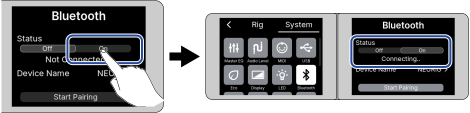
By connecting NEURIG to a smartphone/tablet via Bluetooth, you can wirelessly control NEURIG with a dedicated app. (→ Using an app)
You can also stream music played on your smartphone/tablet on NEURIG.
For more information about working with your smartphone/tablet, see the Operation Manual for your smartphone/tablet.
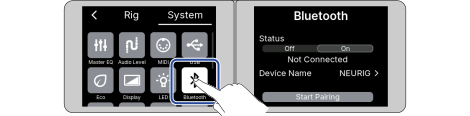
NEURIG enters Bluetooth pairing mode and the current communication status is displayed under “Status.”
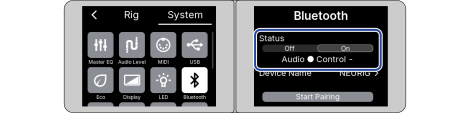
When the smartphone/tablet is connected to NEURIG, “Audio ⚫️ Control -” is displayed under “Status.”
If there is a smartphone/tablet already paired with NEURIG, when the NEURIG Bluetooth function is set to ON, it will automatically connect with the device previously connected.
If the device is automatically connected to another smartphone or tablet, you may not be able to connect from the new device. Disconnect unused device before reconnecting.
If the smartphone/tablet contains old pairing information, you may not be able to establish a connection. Delete “NEURIG” from the smartphone/tablet’s Bluetooth settings, then connect again. If you still cannot connect, restart both NEURIG and your smartphone/tablet and try again.
Turn off the Bluetooth function of your smartphone/tablet, or touch “Off” in step 2 of “Establishing a Bluetooth connection with a smartphone/tablet.”
In future updates, you will be able to perform various operations on the unit, load NAM and IR files, and more by connecting to the dedicated app “SessionZ Pedal.”
By connecting NEURIG to your smartphone/tablet via Bluetooth, you can listen to music from subscription services or video sites you normally use on your smartphone/tablet through NEURIG.
You can also play the guitar along with music played on your smartphone/tablet.
Adjust the volume from your smartphone/tablet.
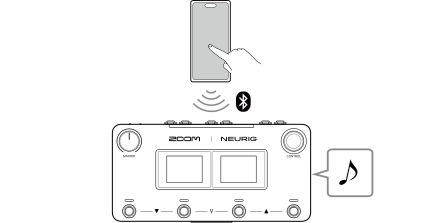
When pairing with a NEURIG in a location where multiple NEURIG units are being used, you can change the displayed name to make it easier for your smartphone/tablet to identify the NEURIG unit connected to Bluetooth.
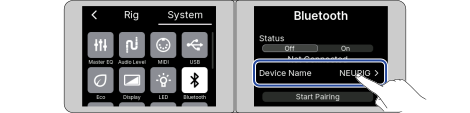
See “Character input screen” for how to input characters.
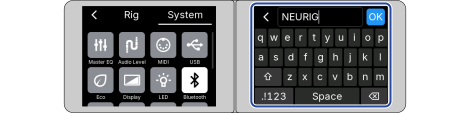
Perform the pairing operation to reconnect a smartphone/tablet that was previously disconnected via Bluetooth, or when connecting to a different smartphone/tablet.
For more information about working with your smartphone/tablet, see the Operation Manual for your smartphone/tablet.
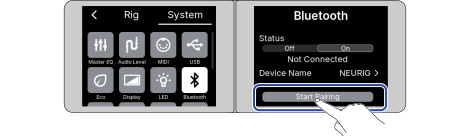
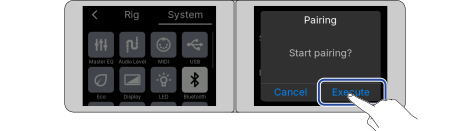
This starts pairing.
When the smartphone/tablet is connected to NEURIG, the previous screen will be displayed.
To use Wi-Fi, you need to connect to the “SessionZ Pedal” app.
For details, refer to the Operation Manual of “SessionZ Pedal” (zoomcorp.com/help/neurig).
NEURIG can be used as a 2-in/2-out audio interface.
From NEURIG, 2 channels of audio signals after effect processing can be sent to a computer or smartphone/tablet.
From a computer or smartphone/tablet, 2 audio signal channels can be input to a position after the effect processing.
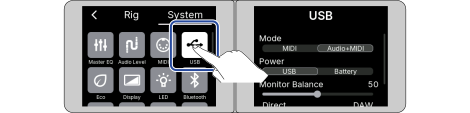
See Signal flow for details about input and output positions.
No driver is necessary for use with a Mac or smartphone/tablet.
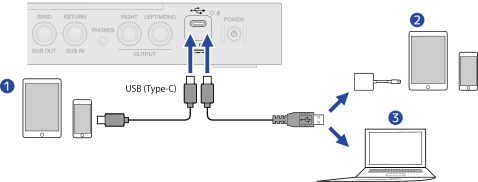
Use a USB (Type-C) cable that supports data transfer.
Use a Lightning to USB 3 Camera Adapter to connect to an iOS/iPadOS device with a Lightning connector.
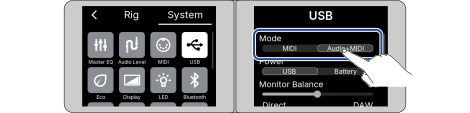
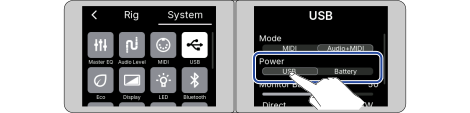
| Setting | Description |
|---|---|
| USB | Power is supplied by USB bus power. Select this when connecting to a computer. Depending on the power supply capacity of the USB bus power of the computer, the unit may operate with the USB bus power. In such a case, select “Battery.” |
| Battery | The built-in lithium-ion battery is used. Select this when connecting to a smartphone/tablet. |
This setting is not saved and the next time you turn on the power, the setting is set to “USB.”
You can adjust the volume (recording level) sent to a computer or smartphone/tablet.
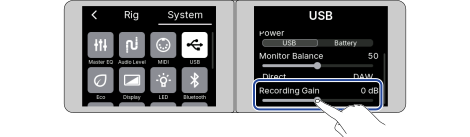
The setting value is displayed on the dual-touch screen.
The setting range is -15 dB to +15 dB.
You can adjust the balance between the output signal from a computer or smartphone/tablet and the direct signal (NEURIG audio).
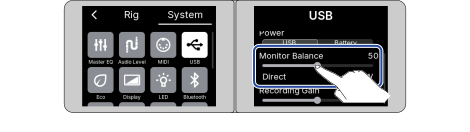
The setting value is displayed on the dual-touch screen.
The setting range is 0 to 100. When set to “0,” only the direct signal is output. When set to “100,” only the output signal from the DAW, computer or smartphone/tablet is output.
The setting is reset to 50 at startup.
When a MIDI device or a computer is connected to NEURIG, control can be exchanged with each other.
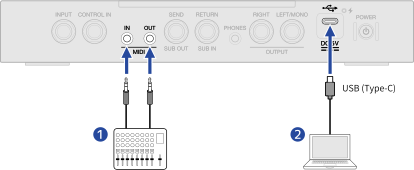
Use a USB (Type-C) cable that supports data transfer.
Switching NEURIG’s Rigs and Programs from MIDI devices
MIDI settings are common to all Rigs.
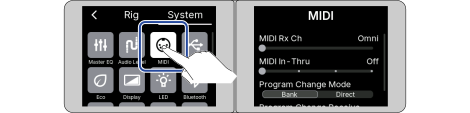
■ Configure the MIDI message receive channel
Drag “MIDI Rx Ch” to select the desired channel.
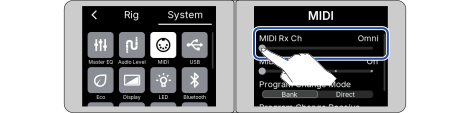
When “Omni” is set, all channels are received.
■ Configure the destination for MIDI messages received via the MIDI IN jack
Drag “MIDI In-Thru” to select a setting.
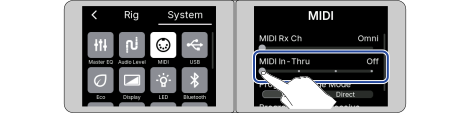
| Setting | Description |
|---|---|
| Off | Not sent. |
| MIDI Out | MIDI messages from the MIDI OUT jack are sent. |
| USB Out | MIDI messages from the USB port are sent. |
| USB/MIDI | MIDI messages from the MIDI OUT jack and USB port are sent. |
■ Configure the receive mode for Program Change messages
Tap the setting item of “Program Change Mode” to select a setting.
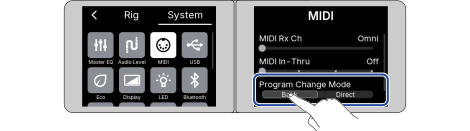
| Setting | Description |
|---|---|
| Bank | Normally, select this. |
| Direct | Select this if the external MIDI device cannot send Bank Change messages. |
When set to "Direct", only Rigs 1 through 128 can be switched using program change information alone. Also send the bank change information from Rig 129 onwards.
■ Configure whether to receive Program Change messages from an external MIDI device
Tap the setting item of “Program Change Receive” to select a setting.
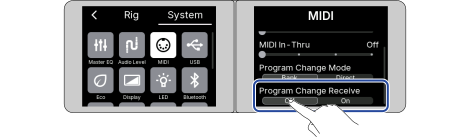
| Setting | Description |
|---|---|
| Off | Not received. |
| On | Received. |
When the Auto Save function is on, Rigs will be saved automatically when their settings are changed.
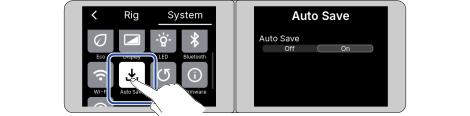
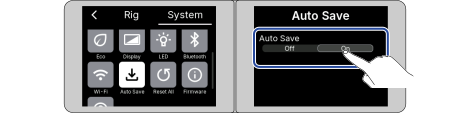
| Setting | Description |
|---|---|
| On | This turns on the Auto Save function. |
| Off | This turns off the Auto Save function. |
Returns to the HOME Screen.
Rigs will not be saved automatically if the Auto Save function is off. When the Rig settings have been changed, the Save icon will appear at the top right of the screen, showing that they differ from the saved settings.
Touching the Save icon displays a screen that prompts you to save changes. When you touch “Execute,” the changed settings are saved.
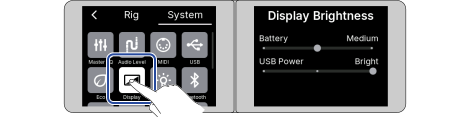
Battery: Setting when the built-in lithium-ion battery is used.
USB Power: Setting when the USB (Type-C) power supply is connected.
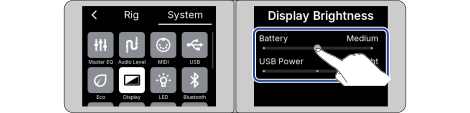
| Setting | Description |
|---|---|
| Bright | Set the display brighter. |
| Medium | Set the display to normal brightness. |
| Dark | Set the display less bright. |
Select “Medium” over “Bright” or “Dark” over “Medium” to reduce battery consumption.
You can configure the brightness of the status indicator/footswitch indicators.
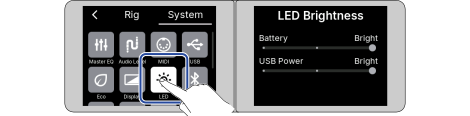
Battery: Setting when the built-in lithium-ion battery is used.
USB Power: Setting when the USB (Type-C) power supply is connected.
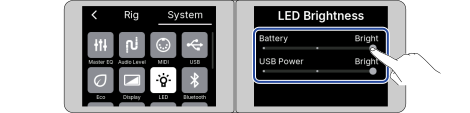
| Setting | Description |
|---|---|
| Bright | Set the indicators brighter. |
| Medium | Set the indicators to normal brightness. |
| Dark | Set the indicators less bright. |
Select “Medium” over “Bright” or “Dark” over “Medium” to reduce battery consumption.
This function can be used to turn the power off automatically 10 hours after the last operation.
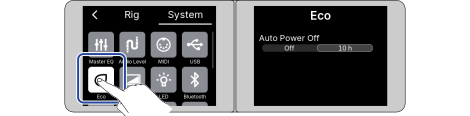
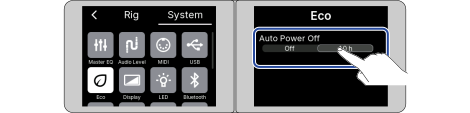
| Setting | Description |
|---|---|
| 10 h | The power will automatically turn off 10 hours after the last operation. |
| Off | This disables ECO mode. |
This adjusts the audio level of the NEURIG’s OUTPUT jacks and SEND/RETURN jacks to match the level of the connected instrument or device.
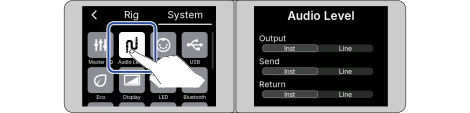
Output: Configures the level of the OUTPUT jacks.
Send: Configures the level of the SEND jack.
Return: Configures the level of the RETURN jack.
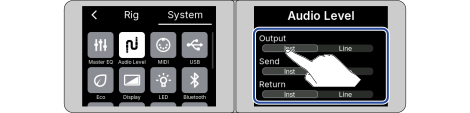
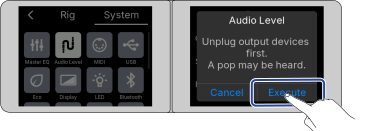
When you tap a setting item, a screen with a caution about vocal pops occurring when switching settings will be displayed. Set the volume of the connected device to minimum and tap "Execute."
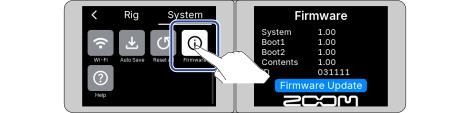
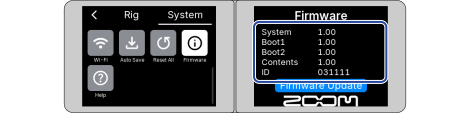
This shows the firmware versions.
You can update the NEURIG firmware to the latest version.
You can update NEURIG directly on the unit by connecting NEURIG to Wi-Fi.
For the latest firmware and operating procedures, check the “NEURIG Firmware Update Guide” on the ZOOM website (zoomcorp.com/help/neurig).
You can restore NEURIG to the factory default settings.
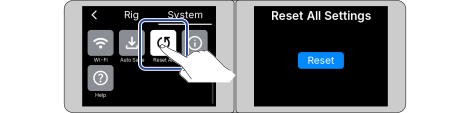
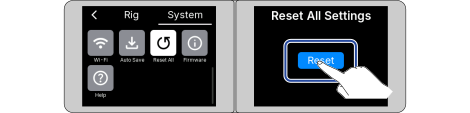
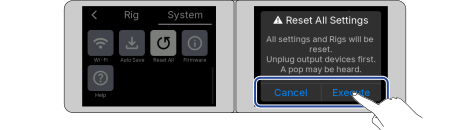
Initialization will be executed, restoring default settings.
Initialization will overwrite all settings, including Rigs, to their factory defaults. Be certain before using this function.
To cancel initialization, touch “Cancel” in step 3.
You can display a 2D code for product help on the NEURIG’s dual-touch screen.
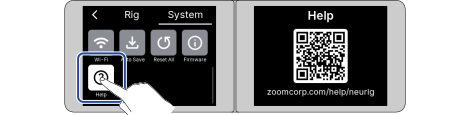
Check the battery level. (→ Charging)
Make sure that the USB (Type-C) power supply supports 10 W (5 V, 2 A) or more. (→ Charging)
If a USB (Type-C) power supply is connected, make sure that it is connected securely. (→ Making connections)
Check the connections. (→ Making connections)
Adjust the Master Volume. (→ Adjusting the Master Volume)
Adjust the levels of the effects. (→Adjusting effect parameters)
Adjusting the Rig and Program volume (→ Adjusting the Rig volume, Adjusting the Program volume)
Check the Rig settings. (→ Adjusting effects)
Check the “Audio Level” settings. (→ Setting the reference output level for inputs and outputs)
Confirm that the tuner output is not set to “Mute.” (→ Setting the output method)
If you are using an expression pedal to adjust the volume, adjust the pedal position until the volume level is suitable.
Check the connections. (→ Making connections)
Replace the instrument cables and check whether the noise is reduced.
Try another USB (Type-C) power supply and check whether the noise is reduced.
If the effect processing power is being exceeded, “Process Overflow” will appear on the dual-touch screen, disabling effect selection. (→ Notes about the number of effects in a Rig)
The battery will run down faster if you use any of the following settings.
The dual-touch screen is set to bright. (→ Setting the brightness of the dual-touch screen)
The indicators are set to bright. (→ Setting the brightness of indicators)
The reference output level for inputs and outputs is set to “Line.” (→ Setting the reference output level for inputs and outputs)
Bluetooth or Wi-Fi is set to on. (→ Establishing a Bluetooth connection with a smartphone/tablet, Connecting to a network with Wi-Fi)
If the power cannot be turned off, perform a forced shutdown. (→ Performing a forced shutdown)
Make sure that the USB (Type-C) power supply supports 10 W (5 V, 2 A) or more. (→ Charging)
For details on how to establish a Bluetooth connection and what to do if a connection cannot be established, see “Establishing a Bluetooth connection with a smartphone/tablet.”
For details on how to connect to Wi-Fi and what to do if you cannot connect, see “Connecting to a network with Wi-Fi.”
Select a pedal effect. (→ Replacing effects, Adding effects)
Check the expression pedal connection. (→ Making connections)
Check the expression pedal connection. (→ Using an external expression pedal)
Check the recording level setting values. (→ Adjusting the volume sent to a computer via USB audio)
| Model : NEURIG MIDI Implementation Chart | Date : Sep.3.2026 Version :1.00 |
| Function | Transmitted | Recognized | Remarks | |
|---|---|---|---|---|
| Basic Channel | Default Changed | x x | Omni 1 – 16, Omni | Memorized (MIDI RX CH / Default: omni) All channels are received when set to Omni |
| Mode | Default Messages Altered | x x ****************** | x x x | Equivalent to Mode 1 when set to Omni/Mode 3 when Ch is specified (Not the sound source) |
| Note Number | x | x | ||
| True voice | ****************** | x | ||
| Velocity | Note ON Note OFF | x x | x x | |
| After Touch | Key’s Ch’s | x x | x x | |
| Pitch Bend | x | x | ||
| Control Change | 0 - 127 | x | o 0, 32, 69 | 0, 32 : Bank Select MSB / LSB *4 69 : Program Select *1 (0–3 → Program 1–4) Other CCs do not work. |
| Prog Change | x *2 | o 0 – 9 (Bank) | Enabled only for PC Receive = On | |
| o 0 – 127 (Direct) | Bank : Bank×10 + PC | |||
| True# | ****************** | 0 – 199 | Direct : Bank×128 + PC | |
| System Exclusive | o | o | Universal Identity Req/Reply ZOOM SysEx (ID 52h, Family 6Eh / 2Eh) For reception both MIDI IN and USB *5 | |
| System Common | Song pos Song Sel Tune | x x x | x x x | THRU route only *3 |
| System Realtime | Clock Command | x x | x x | Tempo sync is not supported |
| Aux Messages | Local ON/OFF All Notes OFF Active Sense Reset | x x x x | x x x x | Active Sensing (FEh) does not go to THRU |
| Notes | *1 Program Select (CC#69) messages can be received via either the MIDI IN jack or USB MIDI. The conditions are the same as for Program Change, Program Change Receive = On, and RX CH match. *2 Program Changes are not sent. *3 MIDI IN-THRU distributes received data as is (There are 4 options: Off, MIDI OUT, USB OUT, and USB+MIDI OUT). THRU does not apply to USB MIDI IN. *4 If the RX CH is other than Omni, CC#0/CC#32 of the unmatched channel are ignored. *5 Identity Reply returns to the requested route. Note: MIDI IN / OUT : 3.5 mm mini stereo phone (TRS), 31250 bps. USB MIDI : Class compliant, 1 port (VID 1686h/PID 0950h: MIDI, 0951h: MIDI+AUDIO). Rig configuration: 200 Rigs = 20 banks x 10, 4 Programs/Rig. | |||
| Mode 1 : OMNI ON, POLY Mode 3 : OMNI OFF, POLY | Mode 2 : OMNI ON, MONO Mode 4 : OMNI OFF, MONO | o : Yes x : No |
| Maximum number of simultaneous effects | 14 EFFECTS | |
| Rig user area | 200 | |
| Sampling frequency | 48 kHz | |
| A/D conversion | 32-bit | |
| D/A conversion | 32-bit | |
| Signal processing | 32-bit float | |
| Frequency response | 20 Hz – 20 kHz (+0.5 dB/−0.5 dB) (10 kΩ load) | |
| Display | Touch LCD (240 x 320 dot) x 2 | |
| Inputs | INPUT | Standard mono phone jack Maximum input level: +12.4 dBu Input impedance: 1 MΩ |
| RETURN/SUB IN | Standard mono phone jack Maximum input level (INST): +12.4 dBu Maximum input level (LINE): +18.4 dBu Input impedance: 1 MΩ | |
| Outputs | OUTPUT L/R | Standard mono phone jack Maximum output level (INST): +12.4 dBu Maximum output level (LINE): +18.4 dBu Output impedance: 330 Ω |
| PHONES | Stereo mini jack (3.5 mm) Maximum power: 24 mW + 24 mW (32 Ω) Output impedance: 56 Ω | |
| SEND/SUB OUT | Standard mono phone jack Maximum output level (INST): +12.4 dBu Maximum output level (LINE): +18.4 dBu Output impedance: 330 Ω | |
| Input S/N | 123 dB | |
| Noise floor (residual noise) | -102.1 dBu | |
| Control input | FS01/FP02M Input | |
| MIDI (IN, OUT) jacks | Stereo mini jack | |
| USB | Port: | USB 2.0 Type-C / Supported cable: Type-C cable |
| USB MIDI: | USB1.1 Full Speed | |
| Audio interface: | USB 2.0 High Speed, 48 kHz, 32-bit float/24-bit, 2-in/2-out Note: Use a USB cable that supports data transfer. Note: USB bus power is supported. | |
| Bluetooth | Bluetooth 5.4 (BR/EDR/BLE) (Max: 7.5 dBm) | |
| Wi-Fi | 2.4GHz : 2.400-2.4835GHz (Max: 19 dBm) 802.11b/g/n/ax | |
| Power supplies | Lithium-ion battery: | Maximum voltage: 4.2 V DC Nominal voltage: 3.7 V DC Capacity: 2900 mAh |
| Commercially available USB AC adapter: | 10 W (5 V, 2 A) or more | |
| Charging time: | About 3 hours | |
| Battery life: | About 4.5 hours | |
| Note: These values are only estimates. Note: These values are based on in-house testing methods. They will vary greatly according to use conditions. | ||
| Dimensions | 120.6 mm (D) x 236.4 mm (W) x 54.2 mm (H) | |
| Weight | 850 g | |
Note: 0 dBu = 0.775 V